How to Turn Claude Into Your Personal Assistant: Connectors
Apr 19, 2026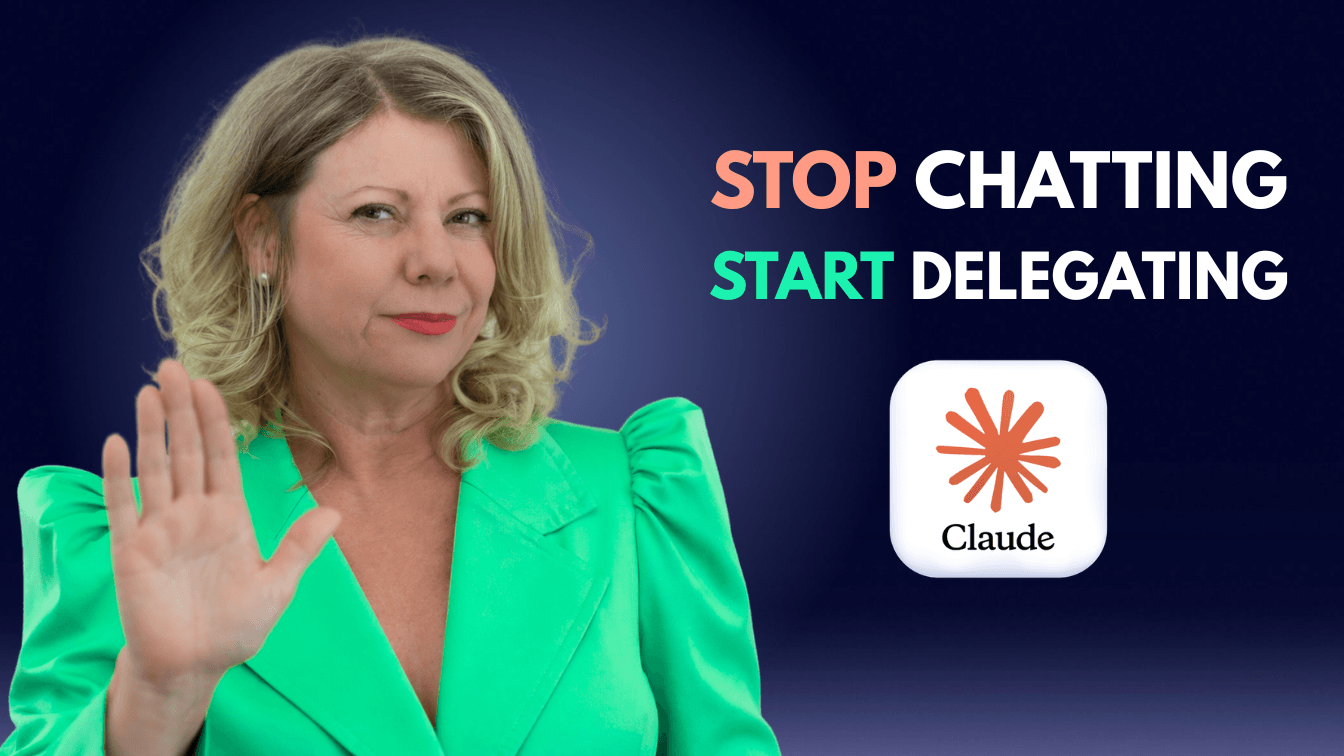
Part 4 of the Claude Set Up Guide
Coat goes on the desk. Bag hits the chair. She doesn’t even break stride.
“Get me Donatella. Cancel the Tuesday meeting. Send the mock-ups to Paris. And RSVP yes to the Michael Kors party.”
Three assistants scatter. The work gets done.
That’s the shift Connectors bring to Claude.
A Connector is a bridge. It links Claude to the tools you already use every day. E.g Gmail. Google Calendar. Google Drive. Canva.
Flip one on and Claude becomes your personal assistant executing your delegated tasks. Gmail drafts the email. Calendar cancels the meeting. Drive pulls the file. Canva builds the mock-up.
All from one conversation. No leaving the chat. No copy-paste. No tab-switching.
This is how you stop chatting with Claude and start delegating to it.
Last week I walked through Claude Skills, which are the instructions that create your AI team. This week we plug that team into the tools you already use.
Welcome to your personal assistant.
Where to Find Claude Connectors and How to Turn Them On
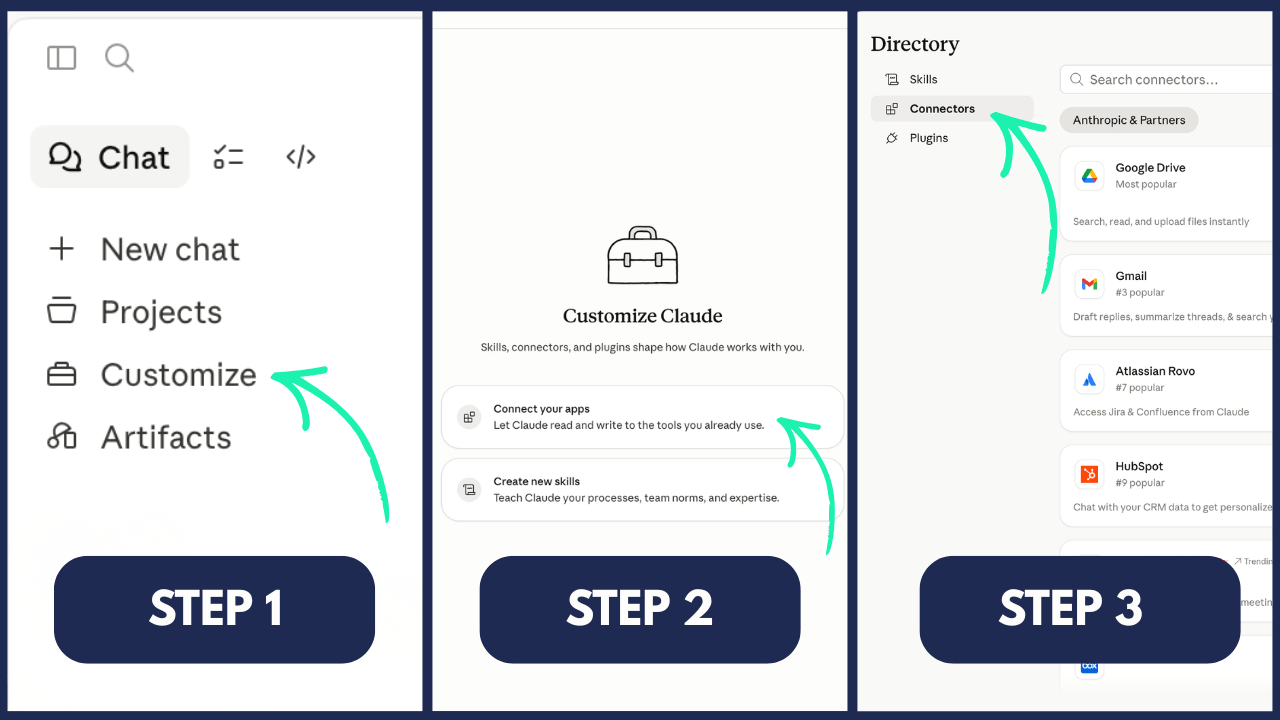
Connectors live on the left-hand side of Claude under Customize.
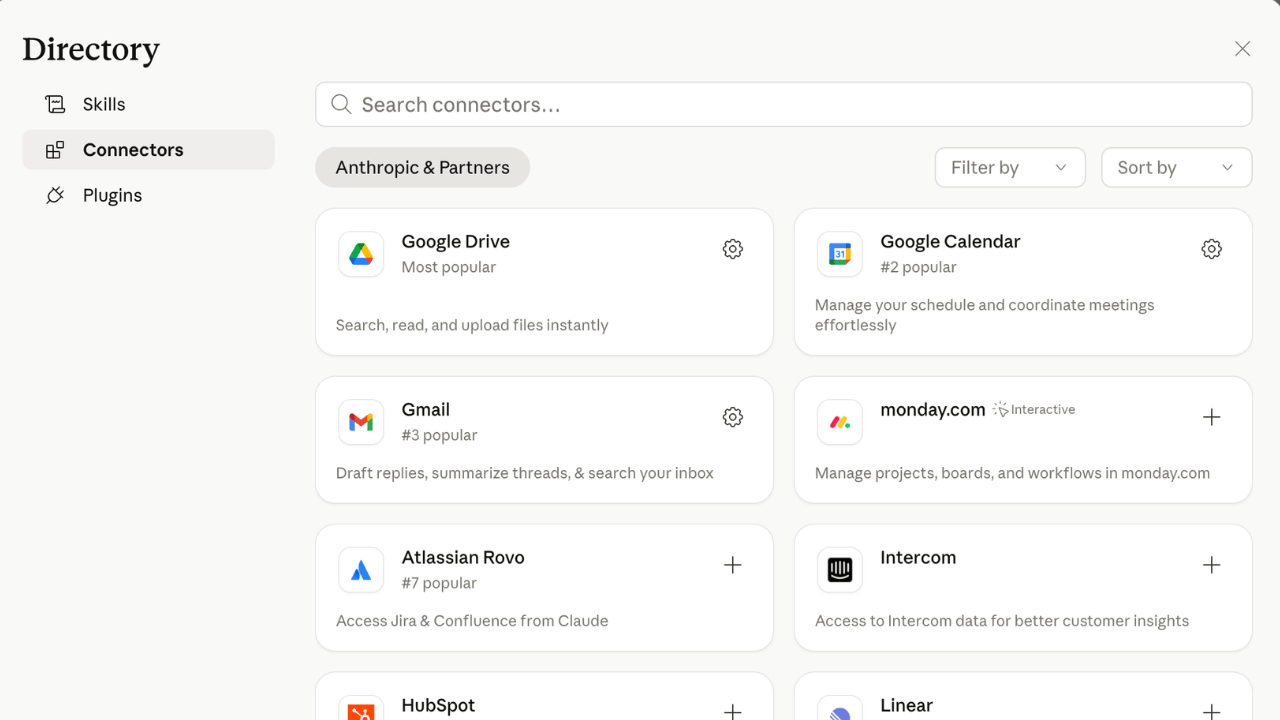
Click Customize, then Connect your apps. You’ll see the full directory. Gmail. Google Calendar. Google Drive. Canva. Asana. WordPress. Notion.
You’ll notice the Customize page groups your Connectors and your Skills together under one umbrella, with the tagline “Skills, Connectors, and plugins shape how Claude works with you.” That’s exactly the point. They’re designed to work together.
To connect one:
-
Find the tool you want.
-
Click Connect.
-
Authorise access when redirected.
-
Review what Claude is asking for and approve what you’re comfortable with.
-
You’re live.
Quick to install, instant action!
How to Use a Claude Connector in Any Conversation
Once a connector is switched on, Claude doesn’t use it automatically. You tell Claude which tools to reach into.
Just ask in plain English.
“Check my Gmail for the email from Sharon last week.”
“Schedule a meeting with Wendy for Thursday at 10.”
“Find the proposal doc in my Drive.”
Claude works out which connector to use and asks permission if it needs to.
Control Which Connectors Are Active in Each Chat
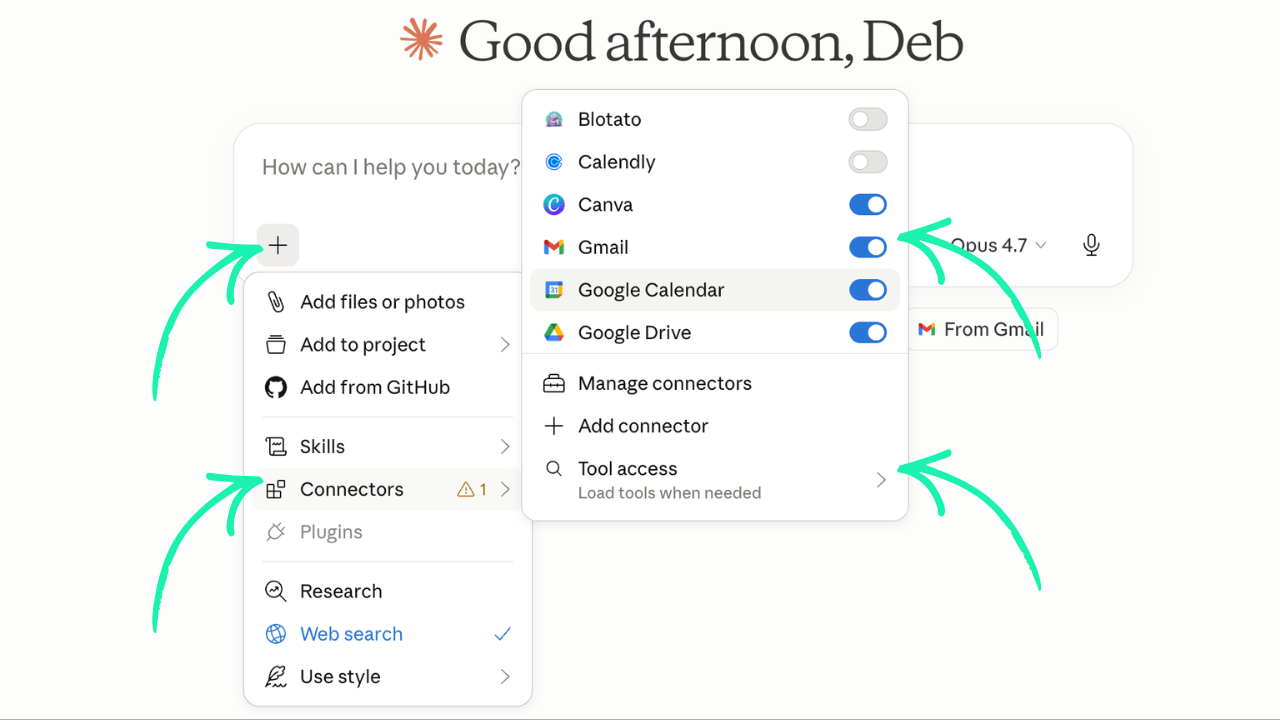
Inside any conversation, click the + button next to the message box. Choose Connectors.
You’ll see every connector you’ve switched on, each with a toggle. Flick the ones you don’t need in this chat to off. Claude will only use the tools you’ve left switched on.
Example: You’re writing a client email.
Switch on Gmail and Google Drive for that chat. Switch off Canva, Calendar, Notion. Claude stays focused on the email task with no background noise.
Why This Matters for Your Usage and Your Context
Every connector you have switched on comes with a tool description. That’s a chunk of text telling Claude what the connector can do.
Claude has to “see” that description to use the connector. Which means every active connector quietly takes up space in your chat, eating tokens you could be using for actual work.
More Connectors on equals more tokens used in your usage.
The fix is to invite only the tools you need into each chat. Think of it like a meeting. You wouldn’t invite your entire team to every discussion. Only the people relevant to the task at hand.
Load Tools When Needed vs Tools Already Loaded
There’s also a clever setting inside the Connectors menu called Tool access. You get two choices.
Load tools when needed (recommended default)
Claude only pulls a Connector’s tool description into the chat when it actually needs it. So if you’re writing an email and only need Gmail, only Gmail loads. Canva, Asana, Calendar, and the rest stay out of the context window. Your conversations stay lighter. Your chats compact less often.
Tools already loaded
Every Connector is pre-loaded into the chat from the start. This eats tokens faster and your chats will compact more often. Only use this if you’re running a complex workflow where you need every tool instantly available.
For most beginners, leave it on Load tools when needed. Claude handles the loading smartly and your tokens stay lean.
The Takeaway
-
Keep Tool access on Load tools when needed as your default.
-
Still toggle off Connectors you know you don’t need for a specific chat. It keeps Claude focused and your context clean.
-
Every chat is a meeting. Invite only the tools that belong in the room.
Remote Connectors vs Desktop Extensions: What’s the Difference
There are two types of Connectors in Claude. Knowing the difference saves you frustration later.
Remote Connectors work everywhere.
These are the ones Anthropic and the big app providers host in the cloud. Gmail, Google Calendar, Google Drive, Canva, Slack, Asana, Notion, Monday, WordPress, HubSpot. They live online and sync across every Claude surface you use. Web. Desktop. Mobile.
Set them up once and they work wherever you’re logged into Claude.
Desktop extensions only work inside the Claude Desktop app.
These are different. Desktop extensions are local tools that run on your actual computer. They’re used when you need Claude to reach into something on your machine itself. Files on your hard drive. Apps installed on your device. Databases running locally.
A good example is the Filesystem extension. It gives Claude direct access to your Documents, Desktop, and Downloads folders. You can ask Claude to create a new folder, move files between directories, or read a PDF sitting on your Desktop. Google Drive (a remote Connector) only sees what’s in the cloud. Filesystem (a desktop extension) sees what’s on your actual computer.
The trade-off is power. Desktop extensions can do things remote Connectors can’t, like control your local files or automate apps on your machine. But they only work where they’re installed.
Quick rule of thumb for beginners: Start with remote Connectors. Gmail. Calendar. Drive. Canva. They cover 90% of what most business owners need. Move to desktop extensions later when you have a specific workflow that requires local file access.
Why Some Claude Connectors Need Extra Setup Steps
Most Connectors click straight in. You hit Connect, authorise, and you’re live.
A few need an extra step first.
Monday.com is a good example. To connect it to Claude, you first need to install the free Monday MCP app from inside monday.com. Without that step, the connection won’t work.
This isn’t a Claude issue. It’s how some tools build their bridge.
The fix when a Connector isn’t working:
-
Check the tool’s help docs for a “Claude” or “MCP” integration guide.
-
Install any required app from their side first.
-
Then come back to Claude and hit Connect.
Most of the time it’s a two-minute fix. You just need to know to look.
What About Custom Connectors (Custom MCPs)?
Claude’s official directory is big, but it’s not everything.
Some of the tools I use every day aren’t in Claude’s directory e.g Blotato (my social scheduler). These are called custom MCPs or custom Connectors, and they work just like directory Connectors once you plug them in.
How Custom MCPs Work in Plain English
An MCP (Model Context Protocol) is the universal language that lets any tool talk to Claude. When a SaaS tool builds an MCP server, they’re essentially giving you a key you can use to connect their tool to Claude manually.
You find the key (usually a URL) in the tool’s documentation or account settings. You paste it into Claude. You authorise access. The tool now behaves like any other Connector. It shows up in your Connectors menu. You toggle it on and off per chat.
How to Add a Custom MCP
-
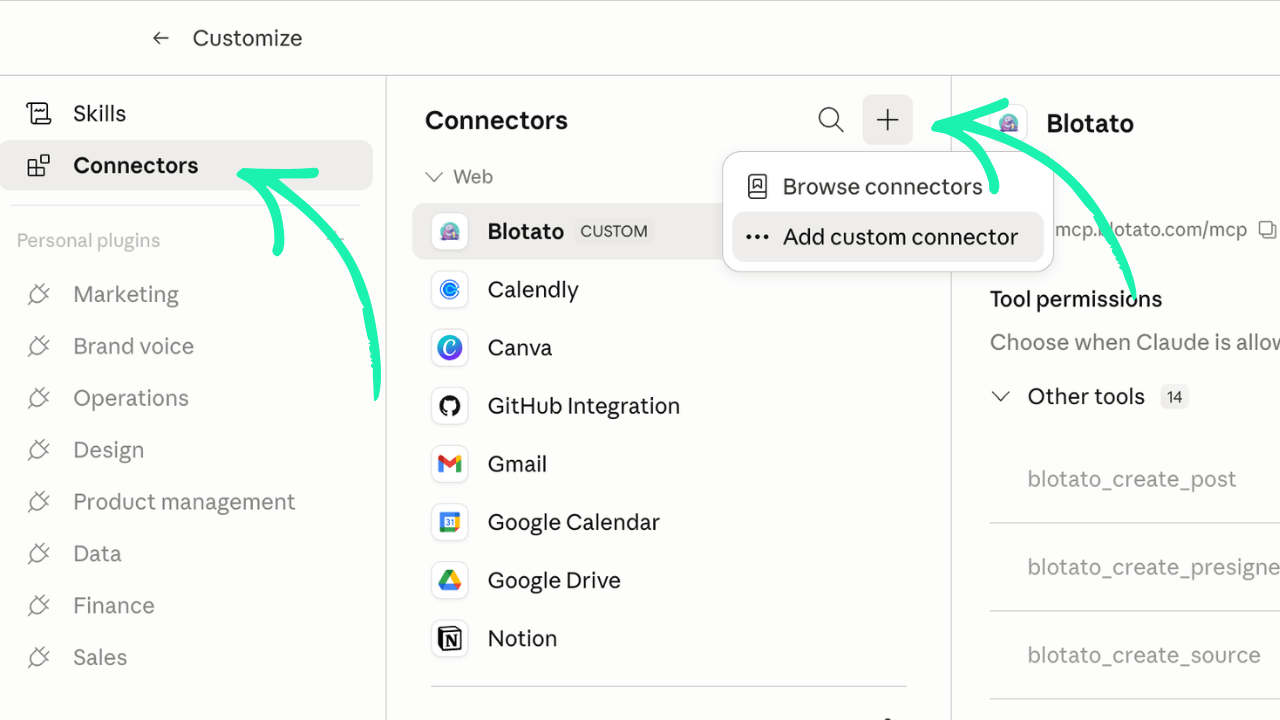
Go to Customize > Connect your apps
-
Click Add Connector
-
Paste the MCP URL from the tool’s documentation
-
Authorise access
-
You’re live
Important: Not Every Plan Includes MCP Access
Here’s the nuance no one’s talking about. Just because a tool offers an MCP doesn’t mean your plan gives you access to it.
I learnt this the hard way. I originally had a Vista Social AppSumo lifetime plan for social scheduling. Vista Social does offer MCP access, but not on my plan tier. I would have had to upgrade to unlock it.
So I switched to Blotato, which offers MCP access at a price point that made sense for me. Now Claude can draft my social posts in my voice and push them straight to Blotato for scheduling. All in one conversation.
The Lesson for Choosing New Tools
When you’re choosing a new SaaS tool, don’t just ask “does it have an MCP?” Ask two questions:
-
Does the tool offer an MCP at all?
-
Is MCP access included in the plan tier I’m on (or can afford)?
If the answer to either is no, you’re locked out of the Claude integration regardless of how good the tool looks on paper.
More SaaS tools are building MCPs every month. This is only going to accelerate. When you’re choosing a new tool, MCP access should be on your checklist right alongside pricing and features.
Claude Connector Permissions: What Each Access Level Means
Connectors are powerful because they give Claude real access to your business. That power comes with responsibility.
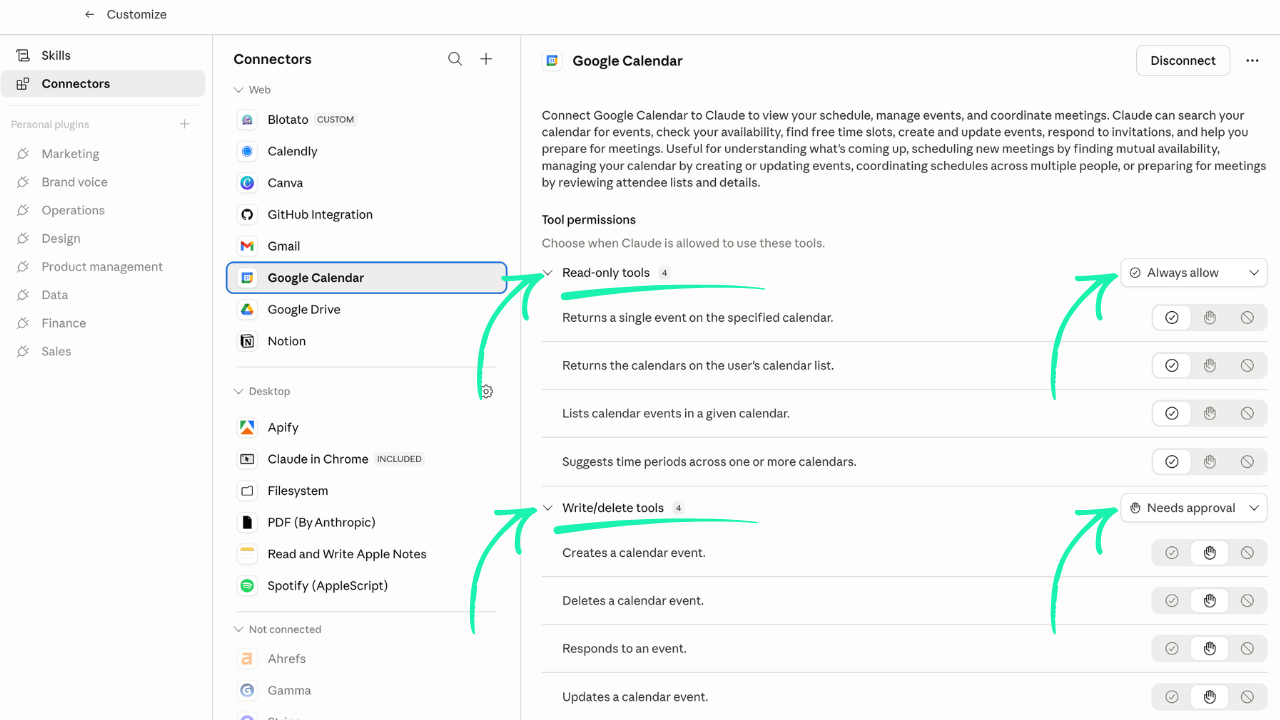
When you connect a service, Claude gives you three permission levels to choose from.
Never Allow
Claude cannot perform this action at all. It’s blocked.
Always ask
Claude can perform the action, but has to ask your permission first. The conversation pauses. You review. You approve or decline.
Always Allow
Claude can perform the action without asking. It just does it.
What “Always Allow” Actually Means for Claude Connectors
“Always Allow” is the fastest setup, but it’s also where you hand over the most control. Here’s what that looks like in practice.
If you grant Always Allow on Gmail and Claude receives a mistaken instruction, it could delete messages.
If you grant Always Allow on Google Calendar, Claude could overwrite your schedule.
If you grant Always Allow on your CRM with delete access, Claude could remove customer records.
You remain responsible for every action Claude takes on your behalf. If something goes wrong, you own it. That’s not a reason to be scared. It’s a reason to be intentional.
The Safe Approach to Claude Connector Permissions
Start by thinking about what each Connector actually needs to do.
Read-only access (calendar viewing, email searching, file reading)
Safe on Always Allow. Claude can’t change anything. It’s just looking.
Write access (calendar scheduling, email drafting, document editing)
Start with Always ask. You’ll see what Claude is about to do before it does it. Once you’re confident in the workflow, you can then opt to move it to Always Allow.
Delete access (removing emails, files, records, calendar events)
Keep this on Always ask or Never Allow. Unless you have a very specific, tested workflow where automatic deletion is the whole point, there’s no reason to hand this over.
Start narrow. Test. Expand as your confidence grows.
Your Connectors are only as secure as the permissions you grant them. The good news is you’re always in control. You can change any permission level at any time.
The Real Power of Claude: Connectors, Skills, and Your AI Brain
Security matters. So does what Connectors actually unlock.
Connectors on their own are access. Skills on their own are instructions. But Connectors plus skills plus real context about your business, your voice, and your positioning?
That’s when the magic happens.
That’s when Claude stops being a tool and becomes a team.
How Skills and Connectors Work Together in Claude
Each skill is a team member trained in a specific department.
Your marketer skill connected to Klaviyo can plan campaigns, segment lists, and execute across your email.
Your content skill connected to WordPress and Canva can audit your site, plan content, and build assets.
Your operations skill connected to Asana and Google Calendar can manage your workflow and organise your day.
You’re not hiring a team of eight.
You’re installing one.
Here’s What We’ve Built Across the Claude Set up Series So Far
Part 1: What to know when migrating to Claude.
Part 2: Ten essentials to set Claude up.
Part 3: Build skills so Claude thinks like your team.
Part 4 : Connectors so your team can actually work with your real business.
If you're setting up Claude, I recommend going back and reading these articles for your full set up guide.
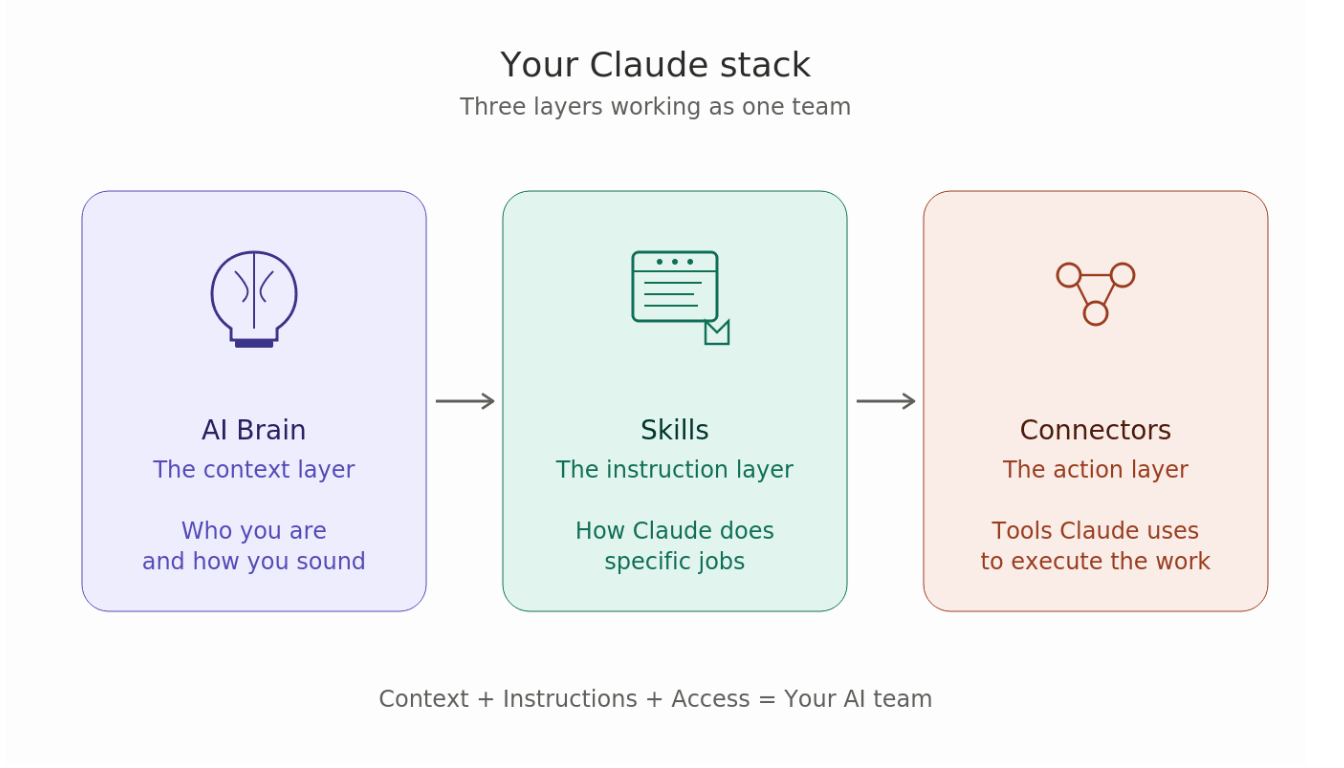
Connectors give Claude access. Skills give Claude instructions. But there’s one more piece that makes the whole stack click.
Your AI Brain.
Connectors plug Claude into your tools. Skills teach Claude how to do specific jobs. But neither of those tell Claude who you are, what your business is, or how you sound.
That’s the missing layer.
I’ve spent the past three years building and refining a diagnostic process that captures all of it in one place. Business DNA + Brand DNA + CEO ‘Business Bestie’ custom instruction. Together they install as your personalised AI Brain, the context layer that turns generic AI into your personal AI twin. This is what we want we create and use install inside our Content Catalyst Community.

And here’s the most valuable part. Your AI Brain isn’t just for Claude. Once you’ve built it, you can install it across any AI you use. Perplexity. ChatGPT. Gemini. Whatever comes next.
Build it once. Plug it in everywhere.
That’s the accelerator.
I’m dropping a full breakdown of the AI Brain later this week. How it works and what it does. Keep an eye on your inbox and subscribe to get notified.
The Four Essential Claude Connectors to Set Up First
If you’re brand new to Connectors, these are the four to switch on first. They cover 90% of what most business owners need.
Gmail
Organise your inbox and find emails you can’t locate. Draft replies in your voice. Everything lands straight in your drafts, ready to send.
Google Calendar
Schedule and organise your day. Pair it with Scheduled Tasks for daily updates and priorities.
Google Drive
Reads your docs, Google Sheets, and Slides so Claude works with your real files.
Canva
Builds brand assets, presentations, social media posts, and graphics using your templates and brand kit.
Connect these four. Set your permissions. Watch what changes in your week.
This is Part 4 of Setting Up Claude as Your CEO and Personal Assistant.
Later this week: Install Your AI Brain. Next Sunday: Cowork and automation.
Comment below have you used Connectors?
Deb Szabo brings 30 years in marketing to practical AI implementation. She is an AI Business Strategist and Claude Specialist who installs an AI Brain for Business and practical AI systems using the knowledge already inside a business. She passed Claude Certified Associate - Foundations and is registered in the Claude Partner Network.
Read the current Claude setup and training guide for Australian businesses.
Get practical AI ideas for your business
Join Deb Szabo's weekly AI for Business Growth newsletter for practical ways to use Claude and AI across your business.
We hate SPAM. We will never sell your information, for any reason.