Get Claude to Think Like a CEO but do Tasks Like Your Assistant
Mar 22, 2026
The 10 features to power up Claude
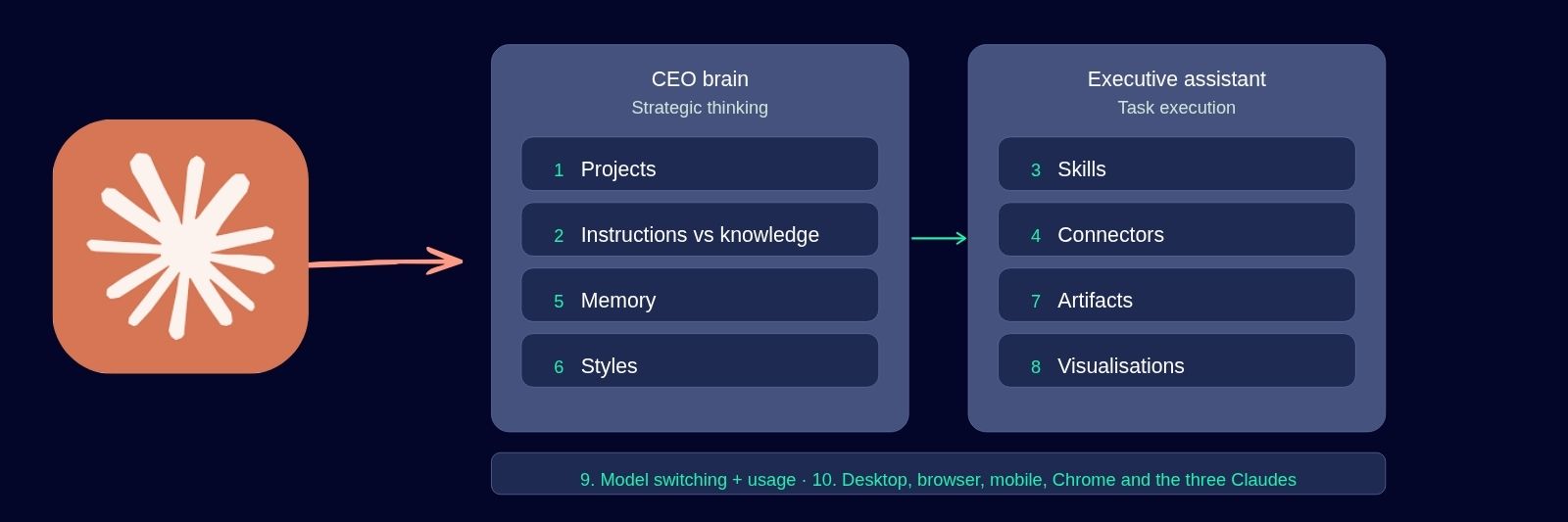
Claude has the capacity to operate like a full C Suite team. From CEO level strategic thinking right through to Executive Assistant task execution, at a fraction of the price. But it does not show up that way out of the box. You have to set it up. And most people do not know how.
That is what this article is for.
Quick guide: The 10 features covered in this article
-
Projects
-
Custom Instructions vs Knowledge Files
-
Skills
-
Connectors
-
Memory
-
Styles
-
Artifacts
-
Visualisations
-
Model Switching and Usage
-
Three Claudes
The CEO Brain: How Claude Thinks For You
Projects and the Distinction That Matters
I covered Projects last week so I will keep this tight. If you have not set up a Project yet, go back to Part 1 and do that first. Everything that follows builds on it.
What I did not cover last week is what happens inside a Project. And this is where it gets interesting.
When you open a Project you will see two distinct areas. Knowledge files on the right side. Custom instructions at the top.
At first glance they look like the same thing. They are not. And this distinction changes everything.
Knowledge files are WHAT Claude knows. Your Business DNA. Your Brand DNA. Your offer details. Pricing. Audience research. Anything that is permanently true about your business. Claude reads these before every conversation inside that Project.
Custom instructions are HOW Claude behaves. Your tone rules. Your communication preferences. How you want it to respond, what it should never do, what personality it shows up with.
Think of it this way. Knowledge files are the briefing folder that sits on the desk before the meeting. Custom instructions are the personality and operating rules of the person reading that folder.
Load your business context into knowledge files. Install your ‘Business Bestie’ personality into custom instructions. Now every conversation starts with Claude already knowing your business AND responding like a strategic thinking partner instead of a polite assistant.
That is the difference between a generic AI and one that feels like it was built specifically for you.
The Personal Assistant
This is where it gets exciting. The CEO brain is powerful but it is still just thinking. These next features turn thinking into action.
1. Connectors
Connectors let Claude talk directly to the tools you already use everyday. Gmail. Google Calendar. Canva. Monday. And over fifty more.
Here’s the scenario. I just got an email from a client asking me to present at their event.
I say to Claude: “Can you check my Gmail for the last email from Sarah Smith about their event? Pull out the key details about what they are looking for.”
Claude fetches the email. Reads it. Pulls out the brief. Now it knows what the client wants without me having to type a single detail from memory.
Then I say: “Based on what Sarah is asking for, draft me a proposal in Google Doc and check my calendar for availability.”
Claude builds the outline. We refine it together. I tweak the details, make sure it is on point.
Then: “Now create a presentation slide deck in Canva using my brand colours. Include a title slide, an agenda slide, and a visual for each of the key sections we just mapped out.”
Claude opens Canva. Builds it. Brings it back into the conversation for me to review.
Then: “Add the presentation to my Google Calendar for Thursday at 2pm. Title it AI for Wineries Presentation. In the notes, paste the outline we built and a reminder to print the one-pager.”
Done. Calendar event created with full context and presentation created.
Then: “Draft a reply to Sarah confirming Thursday at 2pm. Include the Google Doc proposal with visuals. Keep it warm and professional. Mention I can demonstrate a helpful AI tool plus a get started guide and to allow 60 minutes.”
Claude drafts the email. I review it. One click to send.
That is one conversation. Gmail to research to proposal to Google Doc, presentation slides in Canva to calendar to email reply. I never opened another app. I never copied and pasted between tabs. I never lost the thread.
That is not a chatbot. That is a personal assistant who was in the meeting, took the notes, and actioned every single follow up while I finished my coffee.
How to set it up:
Go to the search and tools icon in the chat bar at the bottom of any Claude conversation. Click “Add Connectors.” Select the tool you want, click connect, and sign into your account to grant access.
Start with Google Calendar, Gmail and Canva. Those three alone will change your daily workflow. Test it by asking Claude “Do you have access to my Google Calendar?” and watch it confirm.
2. Skills
This is the feature that turns Claude from the generalist to the specialist.
A Skill is a specialist instruction file you upload into Claude that gives it specific expertise in a particular area. Think of it like hiring a consultant who arrives already briefed, already trained, and ready to work.
Without Skills, Claude is a brilliant generalist. It can write, analyse, strategise, and build. But it approaches every task from its general knowledge base.
With the right Skill installed, Claude becomes a specialist operating with an SOP. A copy editor who follows a specific process. A content planner who maps a full month from one topic. A presentation builder who knows the exact structure of a compelling pitch deck.
Where Skills live:
This is important. Skills are not the same as custom instructions in a Project. Custom instructions live inside a specific Project and only apply to conversations within that Project.
Skills live in your Settings and are available across every conversation, in every Project, in every mode in Claude. Install once, use everywhere.
How to install a Skill:
-
Go to Settings (click your profile icon, bottom left on desktop)
-
Find the Skills section
-
Upload your Skill file (a .md file with a specific format)
-
Done. It is now active across all your conversations.
When Claude detects that your request matches what a Skill is designed for, it automatically activates. You do not need to tell it to use the Skill. It just knows.
NEW! Claude also has a built-in plugin marketplace. Go to Settings, Skills, then Browse plugins. You will find ready-to-install plugins from Anthropic and partners covering everything from brand voice to operations to design. One click to install. Worth exploring once you have your foundations set up
3. Artifacts
Many people think of Claude as a writing tool. Ask a question, get an answer, copy paste it somewhere useful.
But Claude does not just write. It builds.
An Artifact is anything Claude creates that exists as a standalone piece you can use outside the conversation. A formatted document. A spreadsheet. An interactive quiz. A working webpage.
I asked Claude to build an interactive quiz to rank your Google E.E.A.T Score (your digital footprint) with scoring logic, personalised outcomes, and a results page. Not a description of a quiz. The actual working quiz. Built inside the conversation. I clicked through it, tested the logic, and refined it by talking to Claude in real time.
Another example. I needed a competitive analysis across five tools and twelve criteria. Claude did not give me a wall of text. It built an interactive comparison table I could sort, filter, and export.
When Claude creates an Artifact, it appears in a panel on the right side of your conversation. You can expand it to full screen, interact with it, ask Claude to modify it, and download it when it is ready.
When to use Artifacts:
Anytime you need something you can use, share, or build on. Not just read. If you are thinking “I wish this was a document I could send” or “I need this as an actual working tool,” that is an Artifact moment.
Try my E-E-A-T Quiz and see your digital footprint score.
4. Visualisations
This one is brand new and it is genuinely impressive.
Claude can now create custom charts, diagrams, flowcharts, and interactive visualisations directly inside the conversation. These are not screenshots or static images you download. They are interactive. You can click, expand, adjust, and ask Claude to refine them as you talk.
For anyone who thinks visually, this changes everything.
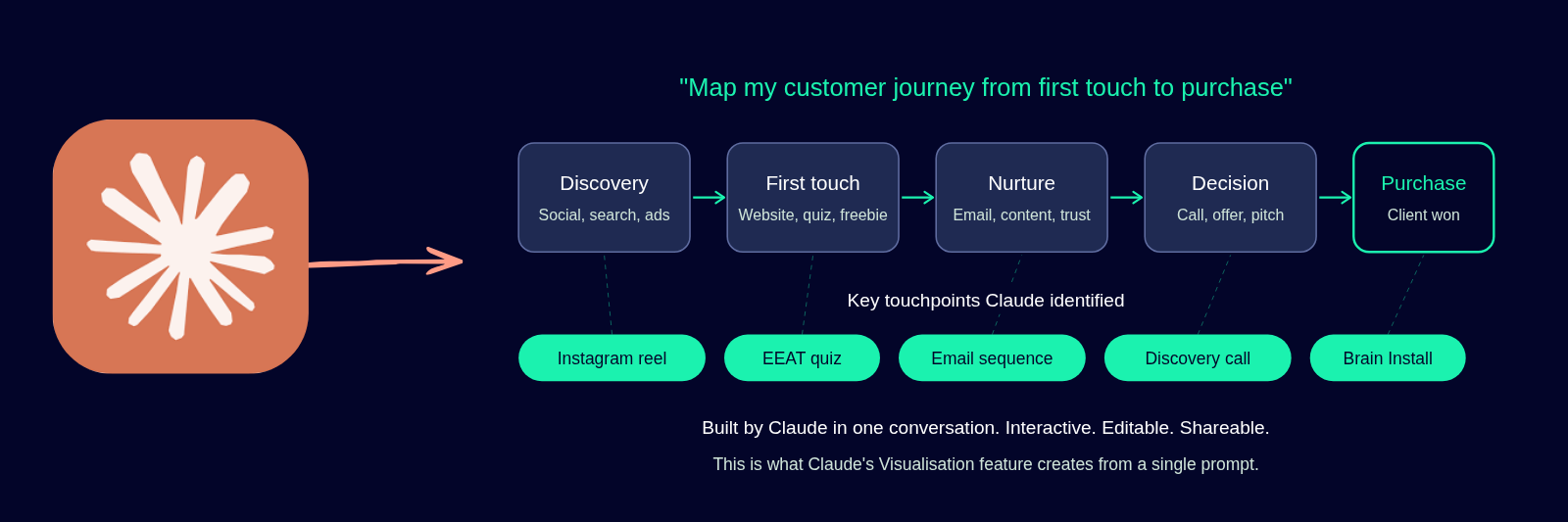
Try this: “Map my customer journey from first touch to purchase as a visual flowchart.”
Watch Claude build a diagram you can actually use in a presentation, a strategy session, or a client pitch.
The feature works on desktop and web right now. Mobile is coming.
Try this today: Take something you have been trying to explain to your team or a client and ask Claude to “visualise this as a diagram.” The first time you see your strategy turned into an interactive visual in real time, you will understand why people are losing their minds over this feature.
The Features Worth Knowing
To keep this article actionable and not a novel, here is a quick look at what else is inside the engine room.
5. Model Switching and Usage
One of the biggest things I hear from new people using Claude is “I have hit the limit and cannot access my chat until later in the day.” Claude handles model usage differently to other platforms, so this is important to know.
Sonnet is your everyday workhorse. Opus is your deep thinker. Knowing when to switch matters because Opus uses more of your allocation.
To keep tabs on your limits, go to Settings, then Usage. That page shows you exactly how much you have used and when it resets. Check it regularly when you are new.
The model selector sits at the top of any conversation. Use Sonnet for drafting, brainstorming, and everyday tasks. Switch to Opus when you need Claude to really think. Strategy decisions, positioning work, complex analysis, anything where depth matters more than speed.
6. Memory
Claude learns about you as you chat. It picks up details like your name, your business, your preferences, and uses them to personalise future conversations.
There are two types of memory to know about.
General Memory lives in your Settings and works across all conversations. Go to Settings, then Memory to see what Claude has stored about you. You can edit, delete, or turn it off.
Project Memory is specific to each Project. Claude automatically regenerates this every evening based on your conversations inside that Project. Open any Project, click on Memory in the right panel, and you can see exactly what it has picked up. Only you can see your Project memory.
You can also give Claude direct instructions about what to remember. Say "remember that I run a winery in the Pokolbin region of the Hunter Valley" and it stores it. Say "forget that I mentioned we make a Merlot" and it removes it.
You are in control of what Claude knows about you. Check both your general Memory and your Project Memory when you first set up. It takes thirty seconds and it is worth knowing what is in there.
7. Styles
If you find yourself repeatedly telling Claude to match your tone or write in a certain way, Styles solve that permanently.
A Style is a saved writing voice you create once and apply to any conversation. Claude then matches your tone, your sentence structure, and your personality without being asked every time.
Go to the model selector dropdown at the top of any conversation. You will see the option to create and manage your Styles there. You can build one from scratch by describing how you write, or you can give Claude a sample of your writing and ask it to create a Style based on your voice.
Once it is saved, select it before you start a conversation and everything Claude writes in that session will sound like you.
8. Desktop App vs Browser vs Mobile
Claude is not just a website. It runs in three places and each one has a different strength.
Browser (claude.ai): This is where most people start. Full access to every feature. Projects, Artifacts, Visualisations, Connectors, Skills, everything works here. If you are sitting at your computer, this is your workhorse.
Desktop App: Same full experience as the browser but it runs as its own application on your computer. The advantage is the dictation mode over just the voice mode (voice mode talks back to you, but way too slowly for my brain). Dictation mode allows you to speak instead of typing. It is available for Mac and Windows. It is also where you access Cowork, Dispatch, and the Chrome extension. Get the Desktop App
Mobile App: This would have to be my favourite app on my phone right now. Speak voice notes on the go, ask quick questions while in the car, midnight brain dumps. I upload screenshots and ask Claude to analyse them or schedule a task to action later. You can also sync your phone to your desktop app via Dispatch so Claude can action tasks on the go.
My recommendation: Desktop app or browser for real work. Mobile for capturing ideas wherever you are. All three sync to the same account so nothing gets lost.
9. Claude in Chrome
The Chrome extension lets Claude see the webpage you are currently looking at. That means you can ask Claude to analyse a competitor’s landing page while you are on it. Summarise an article you are reading. Review a sales page and suggest improvements.
It turns Claude from a separate window you switch to into an assistant that works alongside you wherever you are on the web, you need the Desktop app for this feature. Download the Chrome Extension
10. Wait, There Are Three Claudes?
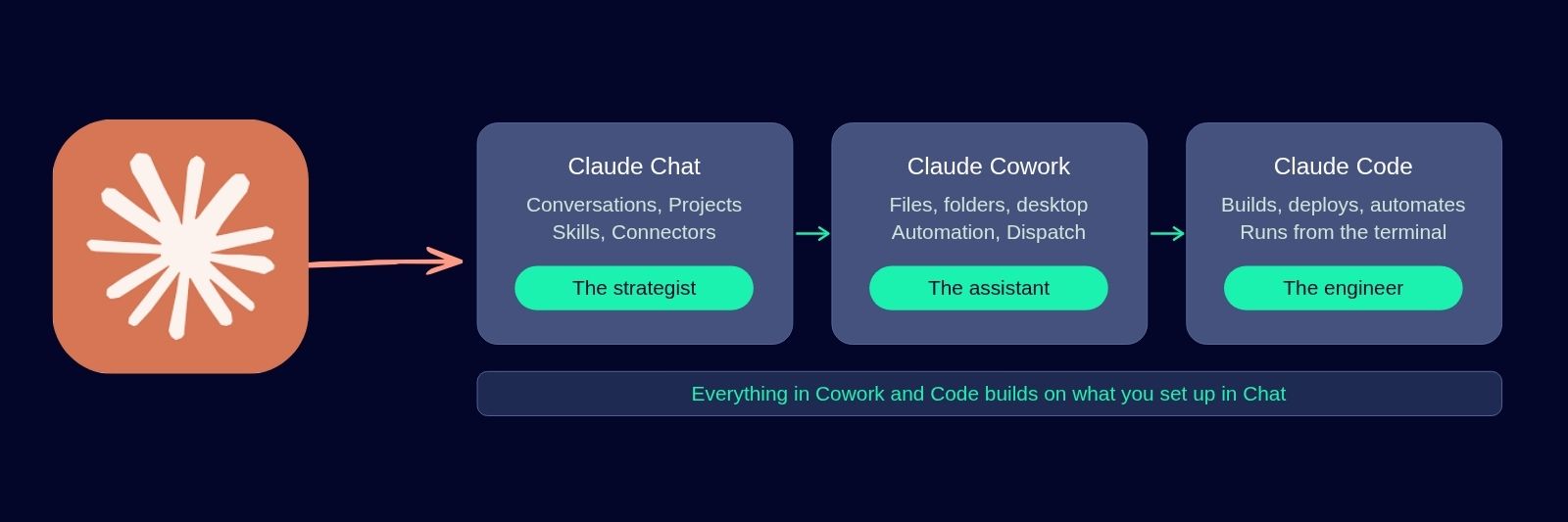
This is something that catches people off guard. Claude is not one product. It is three.
Claude Chat is everything this article and last week’s article have covered. The conversation interface where you type, talk, build Projects, install Skills, connect tools, and create Artifacts. This is where you start. This is your foundation.
Claude Cowork is the desktop application that goes beyond conversation. It works directly with the files and folders on your computer. Think of it as Claude stepping out of the chat window and into your actual workflow. It can read your documents, organise your files, and automate tasks across your desktop.
Claude Code is the developer tool. It runs from the terminal and builds, automates, and deploys. If Chat is the strategist and Cowork is the personal assistant, Code is the engineer.
Here is the important bit. Cowork and Code build on top of everything you set up in Chat. Your Projects, your DNA files, your Skills, your Connectors, your custom instructions. All of that carries through. If you skip the Chat foundations, Cowork and Code have nothing to build on.
That is why this article exists. Get Chat set up properly first. Then Cowork and Code become exponentially more powerful.
Part 3 of this series will cover Claude Cowork and Claude Code. What they do, how they work, and how they connect to everything you have built here. If you want to be notified when that drops, make sure you are subscribed
The Bigger Picture
I want to be upfront about something.
None of this matters if you do not have your foundations in place first.
Claude is not the strategy. It is the accelerator.
If your business foundations are not in place yet, that is okay. But no amount of Claude features will replace them. You will just be running faster without knowing where you are headed.
I have spent the past couple of years turning 30 years of marketing and sales experience into AI systems, knowledge files and frameworks. I use these tools every day for myself, my clients, and my Content Catalyst members.
The foundation is your Business DNA and your Brand DNA. Customised and tailored for your business, your customer, your offers, your tone and voice. Paired with a CEO custom instruction for your Project, which becomes your “Business Bestie.”
It stops AI sounding robotic. Stops it producing generic slop. Stops you having to repeat yourself every conversation. It powers Claude up with a personality that remembers the details that matter.
This is the difference between using AI as a glorified search engine and gaining a solid AI team that will be your most powerful business asset yet.
A CEO that thinks through your hardest problems. A personal assistant that actions the decisions before you have finished your coffee. And an engine room full of tools that are easy to overlook.
That is what Claude becomes when you set it up properly.
Want Help Building Your Foundations?
If reading this made you think “I want this but I do not know where to start with my Business DNA, Brand DNA, and my Business Bestie,” that is exactly what I help with.
If you want practical help setting up Claude and the business context it needs, start with the 1:1 AI Business Power Hour. For the full two-day implementation, explore the Tailored AI Brain for Business VIP Immersion.
Both pathways start with your current business knowledge, goals and tools, then build the right level of Claude setup and practical implementation around them.
If you want practical help setting up Claude and the business context it needs, use the current setup and training guide below.
Read the current Claude setup and training guide

Subscribe to Deb Szabo's AI for Business Growth newsletter for practical Claude and AI implementation guidance. Join the newsletter.
Deb Szabo brings 30 years in marketing to practical AI implementation. She is an AI Business Strategist and Claude Specialist who installs an AI Brain for Business and practical AI systems using the knowledge already inside a business. She passed Claude Certified Associate - Foundations and is registered in the Claude Partner Network.
Read the current Claude setup and training guide for Australian businesses.
Get practical AI ideas for your business
Join Deb Szabo's weekly AI for Business Growth newsletter for practical ways to use Claude and AI across your business.
We hate SPAM. We will never sell your information, for any reason.